Budgets
With Holori, you can define your cloud budgets and receive alerts when you are at risk of exceeding them.
From simple tracking to more advanced planning, this page explains how to use the budgeting feature effectively.
Get started
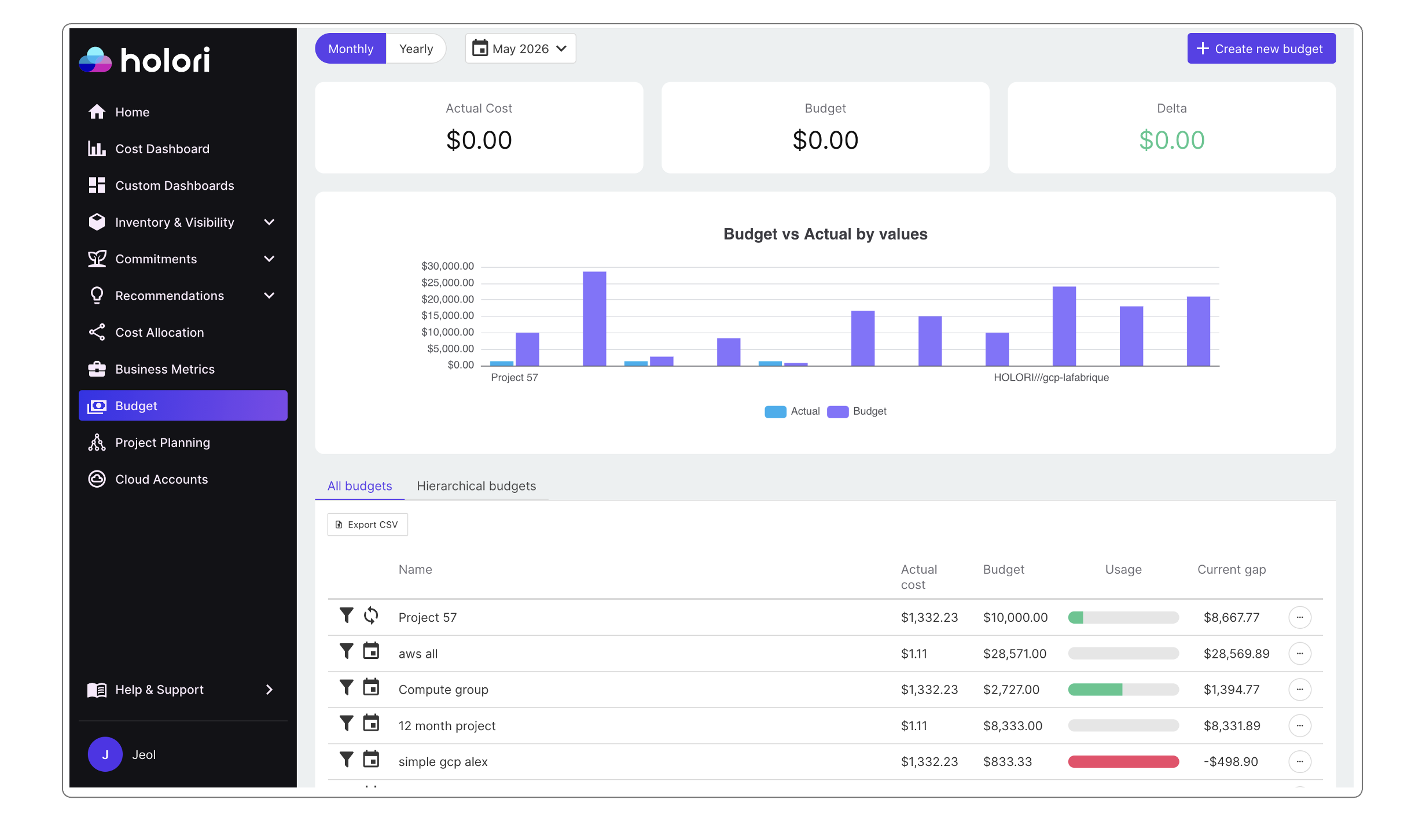
To access your budgets, go to the "Budgets" tab in the left menu.
The page is structured into three main sections:
-
Top section:
Displays your current period’s cloud costs, your defined budget, and the delta (difference between the two). -
Middle section (graph):
- X-axis: your budgets
- Y-axis: values
- Color coding: actual vs budgeted amounts
-
Bottom section:
Contains two tabs:- A table listing all budgets
- An organizational chart for hierarchical budgets
Budget table details
The table includes:
- Actual cost: amount spent during the selected period
- Budget: planned budget amount
- Usage: progress bar showing consumption (turns red at 100%)
- Current gap: difference between budget and actual cost (negative if exceeded)
Both simple budgets and aggregated hierarchical budgets are displayed.
Icons indicate:
- Recurring budgets
- Simple vs hierarchical budgets
Navigate in time
Budgets are defined for a specific period (monthly or yearly).
Use the date selector in the top-left corner to switch between periods.
Create a budget
Click "+ Create New Budget" in the top-right corner.
In the panel:
- Enter a name
- Choose between simple or hierarchical budget
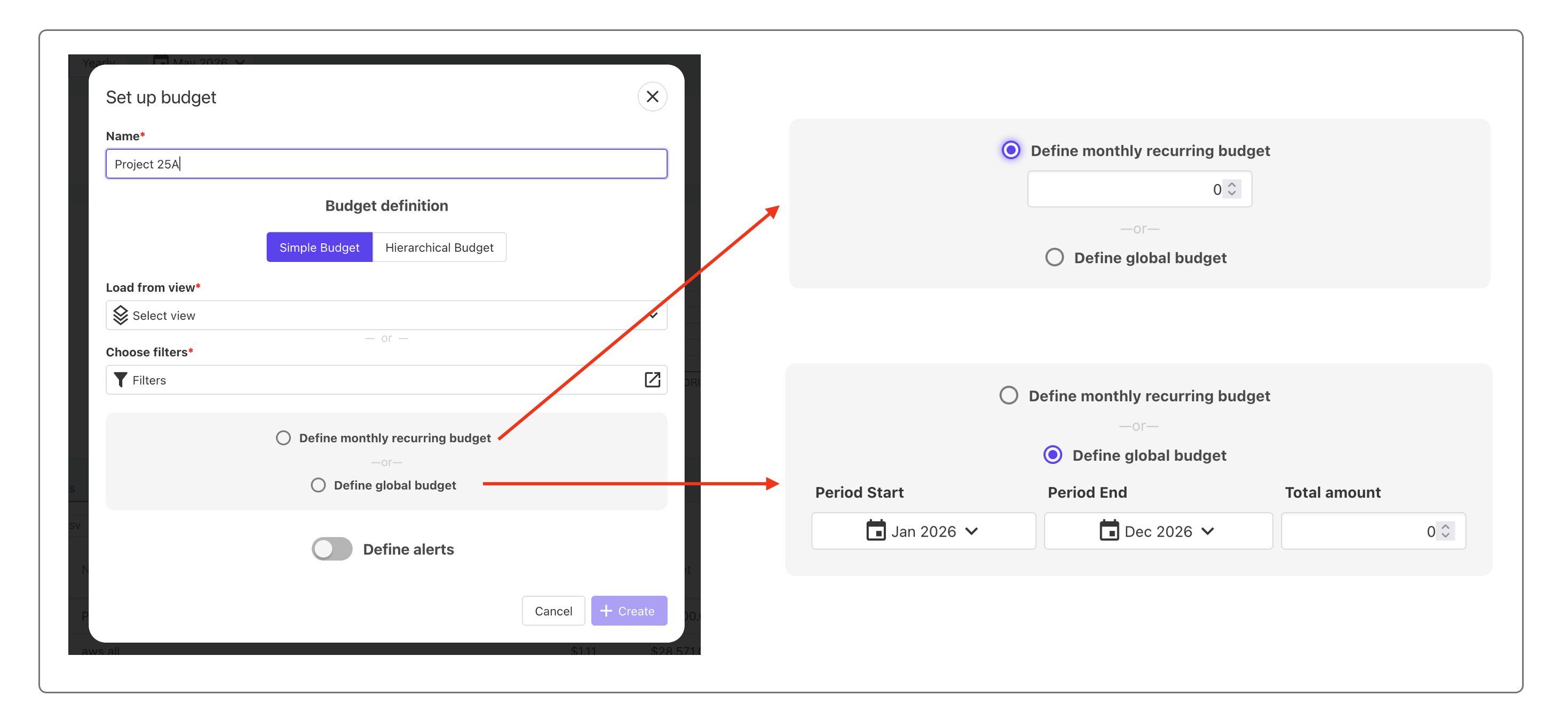
Create a simple budget
You can define a budget in two ways:
Load from view
A view is a predefined combination of filters (see cost reports).
Example:
Provider = AWS, Region = us-east-1, Service = EC2, Tag = dev
This allows you to assign a budget to a specific scope.
Choose filters
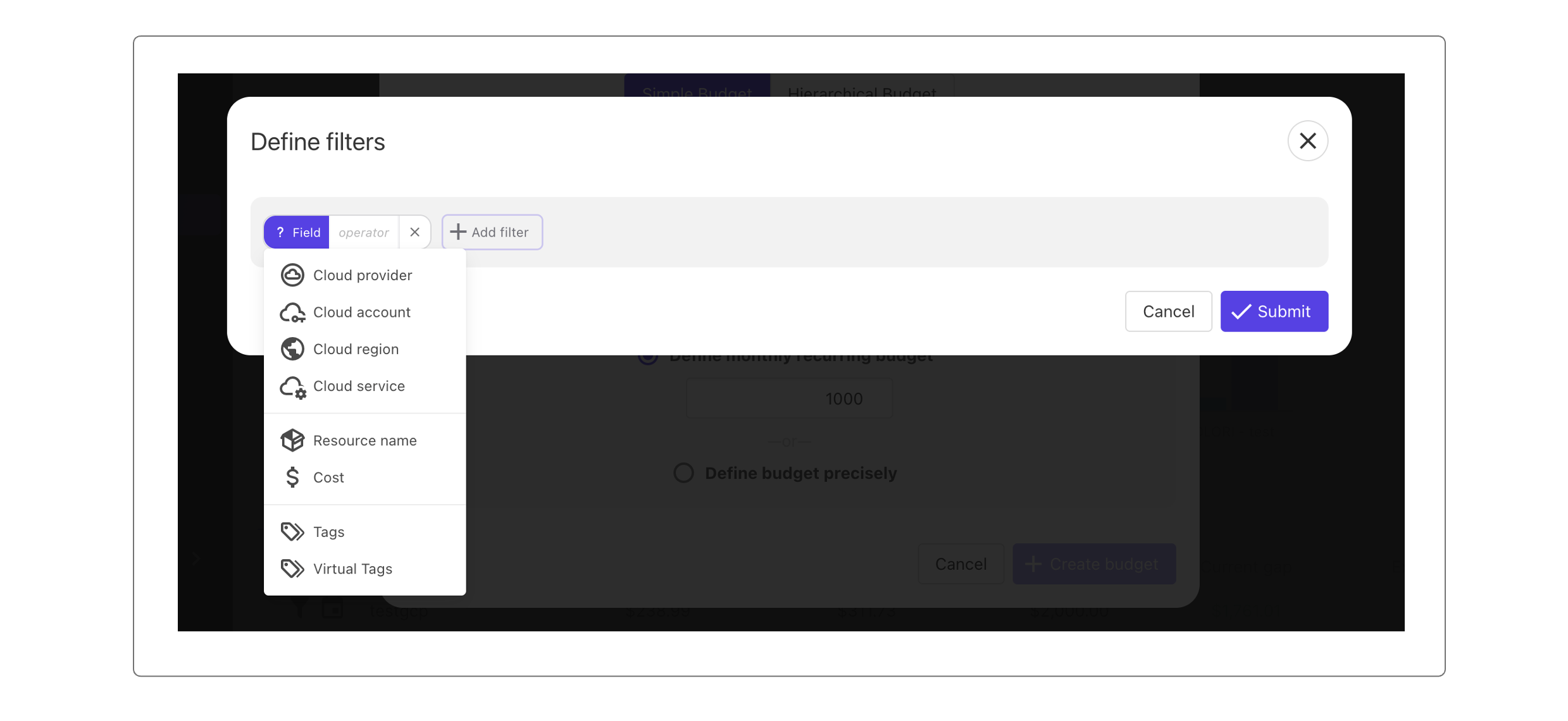
Select filters such as:
- Cloud provider
- Service
- Tags
Using virtual tags helps you build more flexible and scalable budgets.
Example:
Filter Cloud Service = GCP BigQuery to track a dedicated budget for BigQuery.
You can combine multiple filters without limitation.
Define budget type
-
Monthly recurring budget
Fixed amount that resets every month -
Global budget
Total budget over a custom period
Example:
$12,000 from January to December → displayed as $1,000/month
Configure alerts
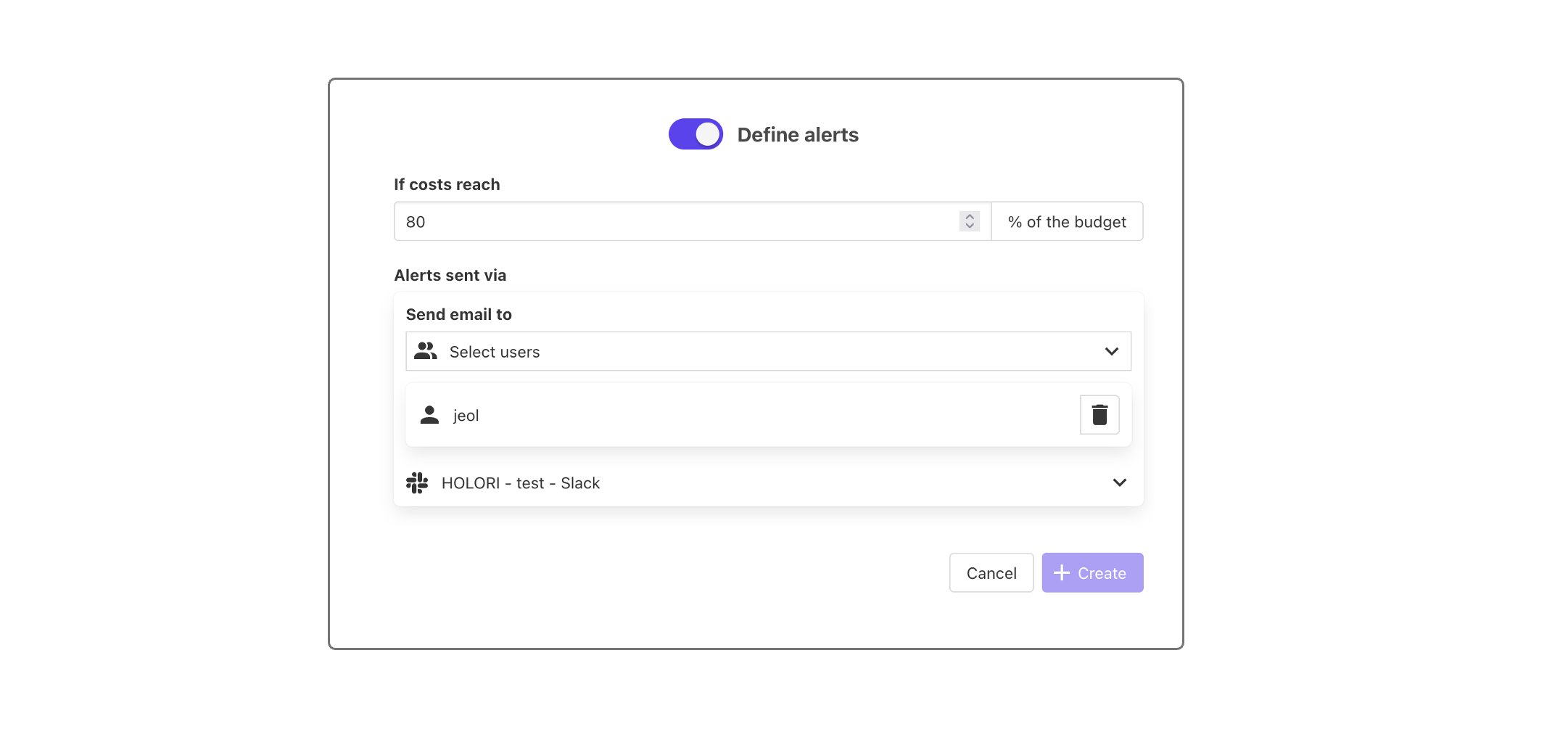
- Alerts are percentage-based
- Evaluated monthly
Example:
- Budget: $10,000
- Alert at 80% → triggered at $8,000
Notifications can be sent via:
- Slack
Select recipients from the dropdown.
Click "+ Create budget" to finalize.
Create a hierarchical budget
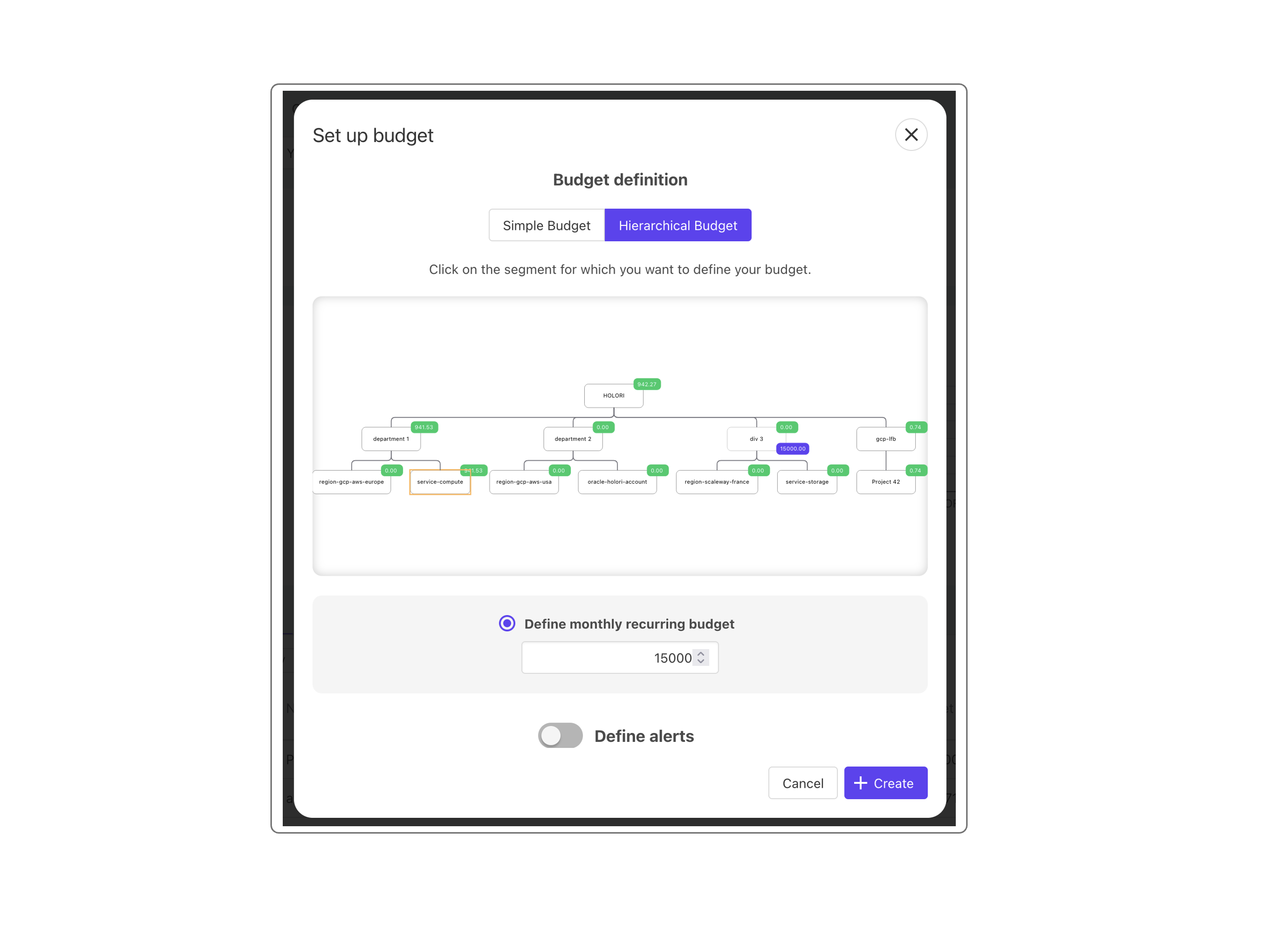
Hierarchical budgets allow you to allocate budgets across organizational segments.
Steps:
- Click "Create new budget"
- Select "Hierarchical budget" tab
Prerequisite:
Your organization must be structured using the org chart in the cost allocation page.
Each segment (cost center) can have its own budget and alerts.
Budgets are independent per segment. Parent segments do not inherit values from children.
Visualize hierarchical budgets
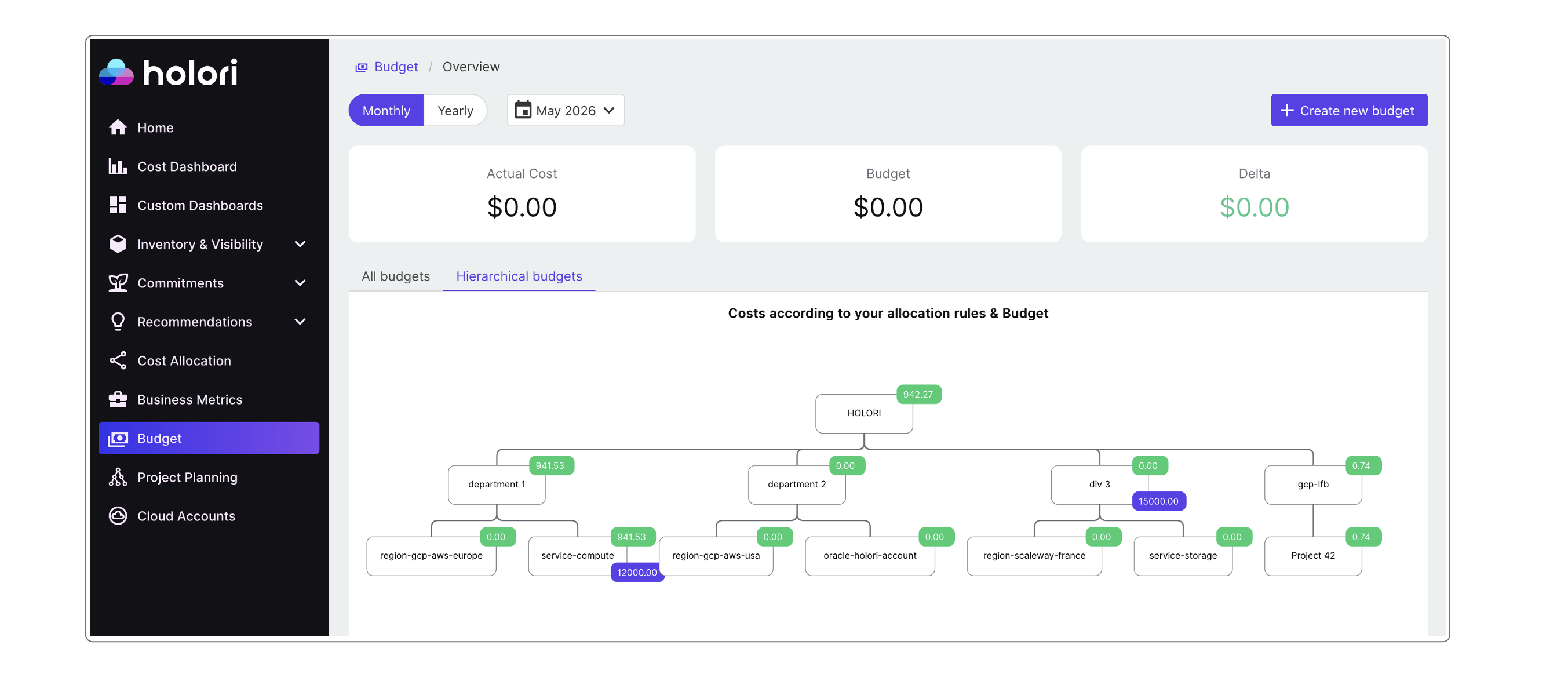
To view:
- In the chart section, switch from "All budgets" to "Hierarchical budgets"
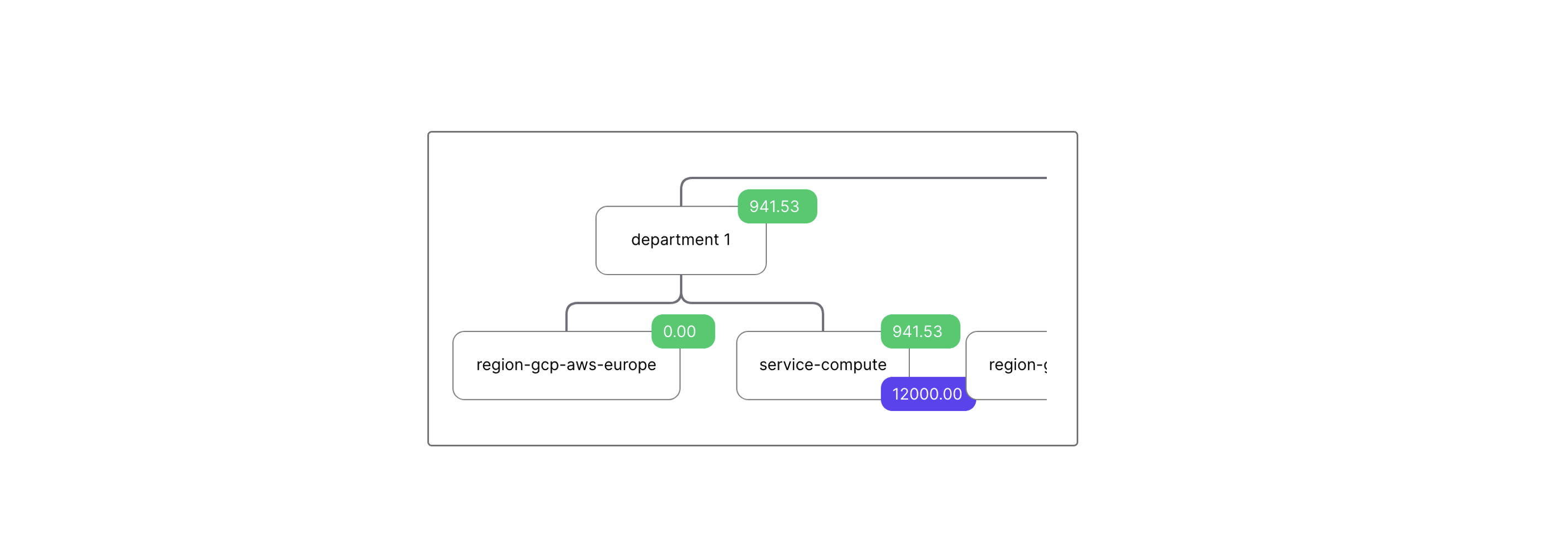
Color legend:
- Green: actual spend
- Purple: planned budget
Edit or delete a budget
- Click the three-dot menu next to a budget
- Select "Edit" or "Delete"
For hierarchical budgets:
- Double-click a segment to edit
- Delete from the "All budgets" tab
Key considerations
Budgeting is different from cost allocation:
-
Cost allocation
- Happens after billing
- Aims to distribute 100% of costs
- Avoids double counting
-
Budgets
- Defined in advance
- Used for monitoring and control
Overlapping budgets
Budgets can overlap.
Example:
- Budget for all dev resources
- Budget for GCP BigQuery
If a resource matches both, it appears in both budgets. This is expected.
This explains why total Budget may differ from total Actual cost.
Holori helps you monitor budgets and anticipate overspending.
It does not enforce limits or stop cloud resources. Usage control remains your responsibility.